

Automating AV Archival Workflows: Part 3
AV Spex
AV Spex is a macOS application I wrote in Python. It’s designed for the Smithsonian National Museum of African American History and Culture (NMAAHC) to process digital video files created from analog sources. The app allows digitization technicians and archivists at NMAAHC to automate multiple preservation actions from a variety of video and digital preservation software. It also collects the results from these actions into a single html report.
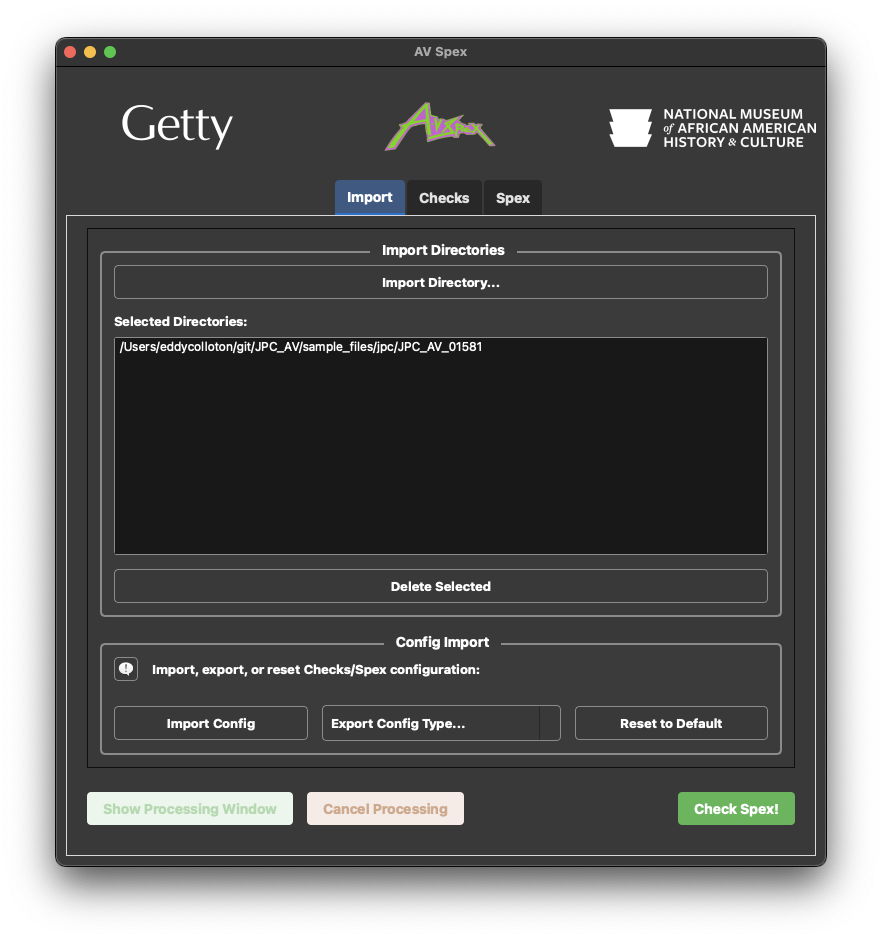
Automating QC of Video
One of the most time consuming aspects of converting analog moving image sources to digital formats is quality control (QC) and quality assurance (QA). A video engineer once told me there is no substitute for “the eyeball test” - getting eyes on the actual video and watching for errors. Closely watching the video is always going to be the most thorough and effective form of quality control. But this manual approach is time consuming and still not 100% effective. Checking the specifications of the video to ensure they conform to expectations can help to catch unexpected errors.
AV Spex runs open-source tools - Exiftool, FFprobe, MediaInfo, Mediatrace, MediaConch, and QCTools - and checks the input video file’s “specs” against expected values (these tools are not built into AV Spex; they are external dependencies). When the AV Spex macOS app is started up, a dependency check is run to confirm all the tools are accessible in the computer’s “path.”
AV Spex also performs preservation tasks like ensuring input file names match expected file naming conventions and creating checksums (both “whole file” checksums and FFmpeg “stream hash” checksums).
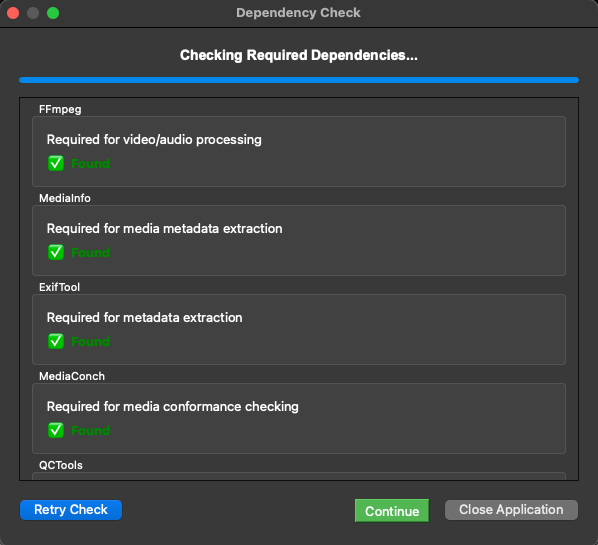
AV Spex’s dependency check runs on startup to ensure all software is already installed
All of these tools are presented in the GUI (graphic user interface), with the intention of lowering the barrier to entry to sequencing and aggregating the results of multiple CLI (command line interface) AV software.
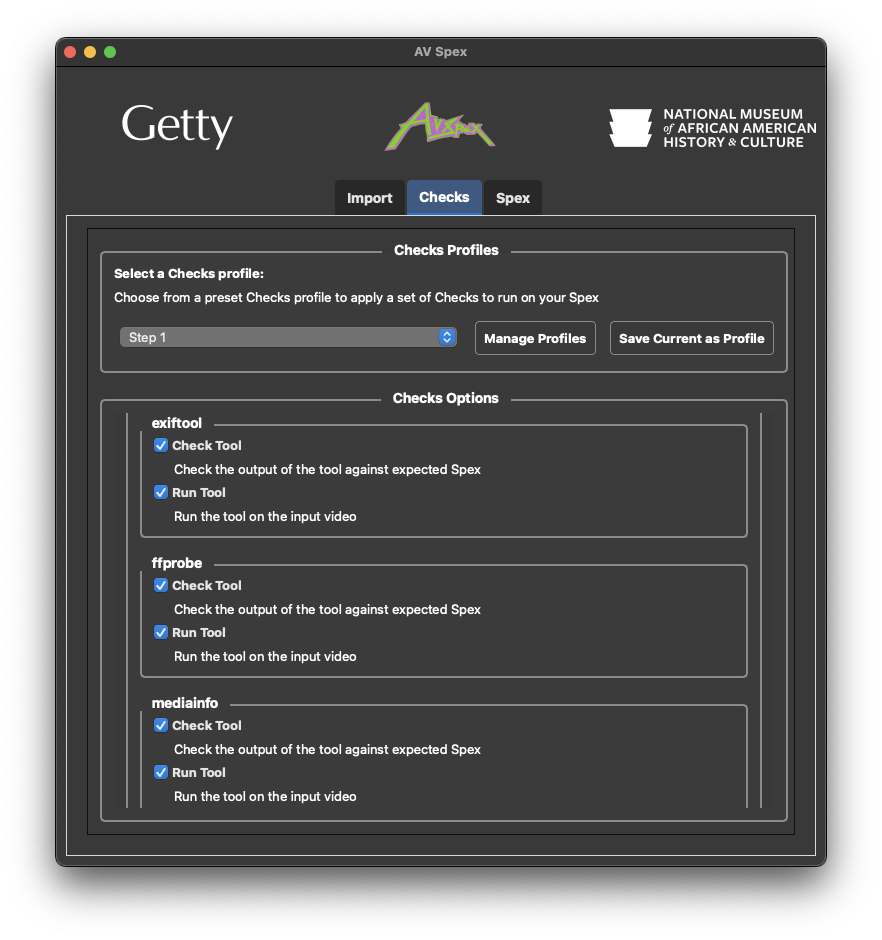
The GUI lets users select options for these CLI tools through two tabs of the interface: “Checks” and “Spex”
Checks
Each tool in the Checks tab has two options, the “Check Tool” and “Run Tool” check boxes. The “Run Tool” option is straightforward enough, it runs the selected tool on the input media and creates a sidecar file, usually in json. All the sidecar files are stored in a subdirectory labeled with the input directory's name and the suffix “qc metadata.”
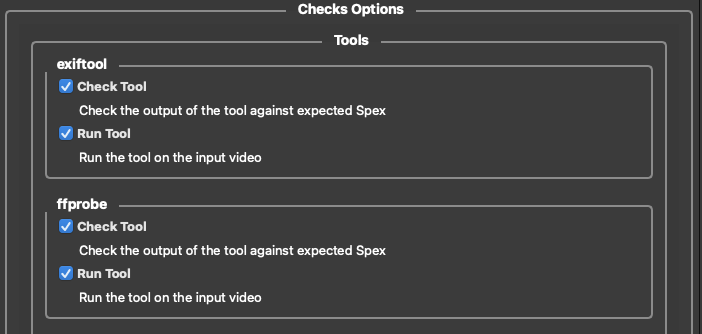
Screenshot from the AV Spex GUI (version 0.8.4.7)
The “Check Tool” checkbox references the values in the “Spex” tab of the application. The Spex tab holds expected values for the different outputs. For a given metadata field in any of the previously mentioned metadata tools, the Spex tab can hold multiple “expected” values, if AV Spex finds the expected value, it considered it a pass, if it doesn’t it’s considered a fail.
Spex
The Spex tab of the AV Spex GUI holds the expected values for each of the metadata tools' outputs.
Checking video files against expected specifications allows users to quickly identify and flag files that are not correctly encoded. For example, it can flag a video file that has an incorrect aspect ratio or the wrong audio codec.
AV Spex will run MediaInfo on an input video file, and then verify that the resulting MediaInfo report contains the expected settings.
QC-ing QCTools Reports
The open source application QCTools has been an enormous help to cultural heritage institutions in performing quality control on video files. QCTools creates in-depth XML-based reports that can be thoroughly examined using the built-in GUI, which makes use of FFmpeg filters and scopes.
At NMAAHC, QCTools reports are created for every preservation video file. But reviewing the reports, like performing the “eyeball test,” is very time-consuming. Just as AV Spex checks the outputs of metadata tools like MediaInfo and FFprobe, we wanted it to check the output of QCTools as well.
Building off the progress of the Association of Moving Image Archivists (AMIA) open source Python tool qct-parse, I wrote a feature into AV Spex that can loop through the XML of a QCTools report and identify color bars at the beginning of a video file.
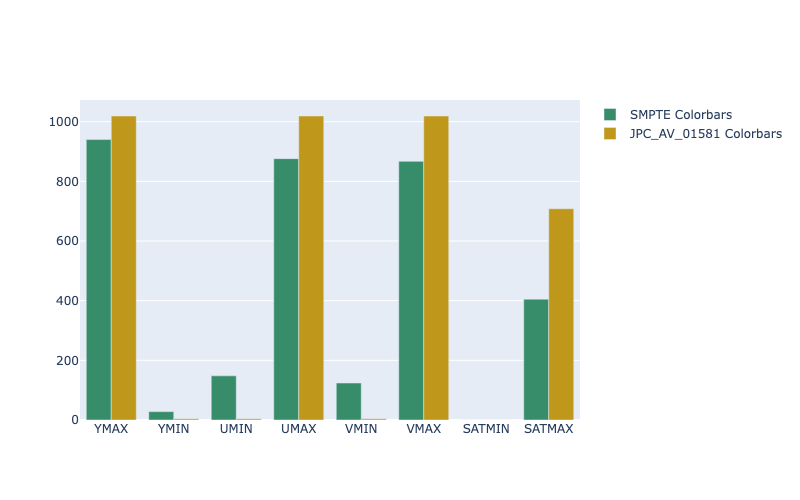
AV Spex creates an HTML report that compares the QCTools values of the input video’s color bars with the QCTools values of SMPTE color bars.
The thresholds of those color bars can then be used as maximums and minimums thresholds for evaluating the rest of the video. This compares the content of the input video with its own internal reference levels, as well as traditional broadcast range thresholds.
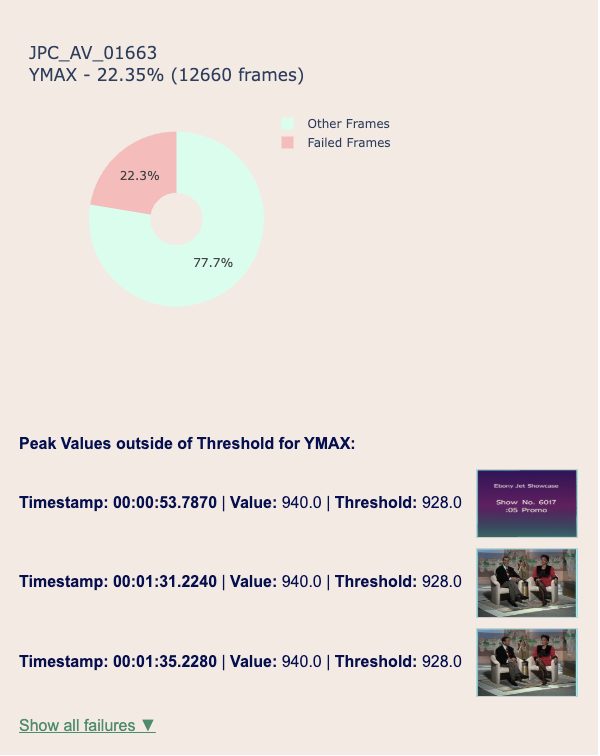
An excerpt from the AV Spex HTML report showing frames that are outside the thresholds set by the video’s color bars.
What’s Next?
Our next area of development for AV Spex is to create features that can automate inspection within the video frame. These features analyze QCTools reports using FFmpeg and OpenCV filters to identify common artifacts of analog to digital video migrations. For example, detecting head switching artifacts, visible blanking area in the video, or frames where a specific part of the picture area is outside broadcast range.
In the next post in this series, I’ll detail these new features.