

Automating AV Archival Workflows: Part 1
I have no idea what I’m doing
For the past five years I’ve had the opportunity to learn coding on the job. I never really planned for that. I never had any intention of becoming a “software developer,” but here I am developing software. Still, I’ve only had a little formal training, it’s all been very trial and error. The feeling of “I have no idea what I’m doing” has kind of typified the journey.
From CLI to Shell scripts
Command Line Interface (CLI) tools have become a common part of moving image archiving. A familiarity with the open source video software FFmpeg gives cultural heritage workers a high level of granular control over the digital assets they are charged with preserving, without the pesky limitations often baked into monolithic video encoding software. Metadata and characterization tools like MediaInfo, Siegfried and Exiftool have similarly become part of our toolkit, because these tools deliver structured metadata that is essential for cataloging and describing collections.

My introduction to these tools was also my introduction to the command line. Until then I had only used software that had a Graphical User Interface (GUI). I had a vague awareness of the Terminal window from movies like The Net and The Matrix, but assumed they were exclusively for hacking into stuff or whatever. I learned how to navigate through the command line using the freely available text from Bert Lyon’s An Introduction to Using the Command Line Interface (CLI) to Work with Files and Directories. Archivists sharing their skills with other archivists is emblematic of how cultural heritage workers adapt to new challenges.
Learning to preserve cultural heritage objects that are intrinsically linked to technology means committing oneself to lifelong learning and training. One of the things I like the most about our field is the spirit of community and mutual benefit that community engenders. The open source resource FFmprovisr, a repository for FFmpeg commands and a detailed explanation of how they work, is a great example of this, and it’s inspired several similar resources: Script Ahoy, The Sourcecaster, Micropops, QEMU QED, and more.
I slowly built up a familiarity and comfort with the command line, but for years, that was as far as it went. I was aware that these tools could be strung together to do more powerful things, but the hurdle of figuring out how to achieve that meant I was only ever running one-line commands or re-purposing existing scripts.
Hurdles to Automation
When I was working as a Project Conservator of Time-based Media at the Hirshhorn Museum & Sculpture Garden (HMSG), we would run a series of command-line-based tools on digital components of artworks to collect technical metadata on those files. This series of individual steps always felt like it was a great opportunity for automation, but I couldn’t quite figure out how to make it work.
The hurdles in my way were:
Lack of time: There was an ever-growing queue of work to do, so taking time to automate our workflow felt like a risk. Could halting the processing of incoming acquisitions in our queue to learn coding really save time? It felt safer to just tediously run the workflow manually.
Heterogeneity: Each hard drive or set of digital files we processed needed to be associated with an artist's first and last name, an artwork title, an acquisition number, and similar identifiers, but none of that information would necessarily be on the hard drive or structured uniformly. With the need for so many manual inputs, how could the workflow be automated?
Prioritization: There was always a lot going on! New exhibitions, visiting artists, conferences, department meetings - we were never just working on one thing at a time (who is?). Digging in on a new project and developing a new skill would take time and space that felt in short supply.
Then the pandemic hit. Suddenly, priorities needed to change and we were all asked to work remotely as much as possible. Automating our workflow was something I could do from home! This was the first push I needed to get started.
The pandemic also brought with it a personal life change for me (as it did with many of us). My wife and I moved back to her hometown of Denver. I would now need to work remotely indefinitely. The Hirshhorn’s Variable Media Conservator Briana Feston-Brunet worked with me to develop a new contract that would allow me to continue developing the automated workflow full time.
HMSG_auto
My first task in automating HMSG’s time-based media processing workflow was to figure out how to collect the various heterogeneous identifiers required for the storage locations (the artwork’s title, the museum’s accession number, the artist’s name, etc.).
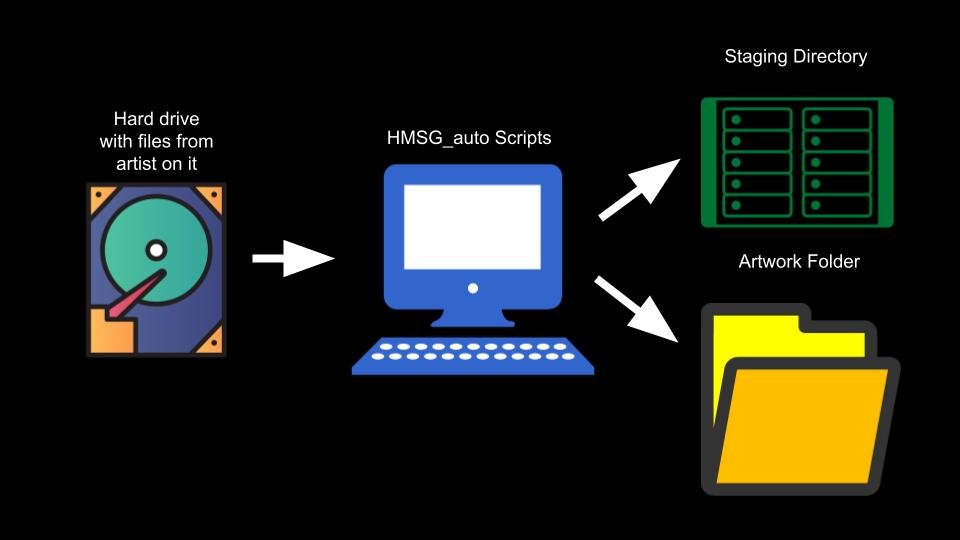
Technical information collected during the processing workflow is stored in two places:
The staging directory, where the artwork media itself is “staged” before being moved into the Smithsonian’s Digital Asset Management System (SI DAMS).
The artwork folder, where the conservation department stores documentation and reports
Both of these storage locations have a naming convention for uniformly organizing directories. These naming conventions aren’t the same, but they need the same identifiers, like the artist’s last name and the artwork’s accession number. These identifiers need to be collected manually; they can’t be gleaned from the contents of the hard drive.
Tutorials
I found a tutorial on LinkedIn Learning (formerly Lynda.com) on shell scripting that demonstrates how to present the user with a prompt. The course, Learning Bash Scripting (2013) by Scott Simpson, shows how to write a function that uses the bash keywords “select” and “case” to create a multiple-choice-style prompt for the user:
This is an excerpt from the first commit of the automation scripts to GitHub:
echo "Does the Artwork File exist? (Choose a number 1-3)"
select ArtFile_option in "yes" "no" "quit"
do
	case $ArtFile_option in
		yes) echo -e "\n*************************************************\n
Input path to Artwork File. \nThe directory name should be: \n'Accession Number_Artwork Title' "
		#Asks for user input, allows for tab completion of path
			read -e ArtFile
			##Takes user input. might be ok with either a "/" or no "/"?? Is that possible?
			#Assigns user input to the ArtFile variable
			while [[ -z "$ArtFile" ]] ; do
					echo -e "\n*************************************************\n
Input path to Artwork File. \nThe directory name should be: \n'Accession Number_Artwork Title' " &&
read -e ArtFile
				done
			echo -e "\n*************************************************\n
The Artwork File is $ArtFile"
			break;;
		no) MakeArtworkFile
			break;;
		quit) exit 1 ;;
	esac
done
The potential answers to the prompt “Does the Artwork File exist? (Choose a number 1-3)” are listed after the keyword “select,” and the results of a particular answer are listed in the “case” code block. This excerpt uses another bash keyword I learned from the same tutorial, “read.” In this context, the “read” keyword accepts the text a user types in and assigns it to a variable. For example, “read -e ArtFile” will assign the text the user types into the terminal to the variable “$ArtFile.” The “-e” flag makes the text entry “editable,” allowing the user to move the cursor back and forth, and, importantly for inputting file paths, use “tab completion.”
Stack Exchange
Outside of online training videos and tutorials, the other resource I leaned on to write these scripts was question and answer community sites like Stack Exchange, Stack Overflow, Ask Ubuntu, and others like them.
I found some of the initial feedback to the scripts from Feston-Brunet in my email. Again, the challenge we faced was the uniqueness of each artwork. I had planned on copying every file from the provided hard drive to the staging directory, but that wasn’t always necessary or ideal:
“Would there be an option to selectively add folders or files from a volume? For example, one artwork I had over the weekend had a Launcher app that the script got hung up on and was never able to work around. Another had actually 12,000 tifs in the folder. It would be great to have an easy way to work around a file or group of files that needs to be left out of the overall process.”
In order to let the user select specific files and directories, I needed to find out how to present multiple selectable options in an interactive list. With some haphazard internet research, I eventually stumbled upon this post on Stack Exchange. To keep track of resources like these, I would include the links directly inline as “commented out” code. Taking on a coding project like this one was intimidating, and keeping track of the different sites I was cobbling together code from took the pressure off of trying to remember specific functions and keywords. Here’s a code excerpt from a current script as an example of how I keep links in the code as comments:
function MultiSelection {
	cowsay -s "Select directories from the list below, one at a time. Type the corresponding number and press enter to select one. Repeat as necessary. Once all the directories have been selected, press enter again."
	# The majority of this function comes from here: http://serverfault.com/a/298312
	options=()
	while IFS=  read -r -d $'\0'; do
		options+=("$REPLY")
	done < <(find "$" -not -path '*/\.*' ! -iname "System Volume Information" -type d -mindepth 1 -print0)
	# I got the array parts of this from https://stackoverflow.com/questions/23356779/how-can-i-store-the-find-command-results-as-an-array-in-bash
	# Except for the "not path" stuff, to avoid retrieving hidden files, which comes from here: https://askubuntu.com/questions/266179/how-to-exclude-ignore-hidden-files-and-directories-in-a-wildcard-embedded-find
	# The -iname statement ignores directories named "System Volume Information" a hidden directory on a drive I was testing with, that the '*/.*' did not catch. we can add other such directories to this find command over time.
	# The curly brackets and %/ around the Volume variable remove a trailing "/" if it is present (does nothing if it isn't there). This prevents a double "//" from ending up in the list of directories.
	menu() {
		echo "Available options:"
		for i in $; do
			printf "%3d%s) %s\n" $((i+1)) "$ " "$"
		done
		[[ "$msg" ]] && echo "$msg" ; :
	}

	prompt="Check an option (again to uncheck, ENTER when done):
	"
	while menu && read -rp "$prompt" num && [[ "$num" ]]; do
		[[ "$num" != *[![:digit:]]* ]] &&
		(( num > 0 && num <= $ )) ||
		{ msg="Invalid option: $num"; continue; }
		((num--)); msg="$ was $checked"
		[[ "$" ]] && choices[num]="" || choices[num]="+"
	done
	# All of this is form http://serverfault.com/a/298312
	for i in $; do
		[[ "$" ]] && { printf "$"; msg=""; printf "\n"; } >> "$_list_of_dirs.txt"
		# This "for" loop used to printf a message with the selected options (from http://serverfault.com/a/298312), but I've changed it to print the output of the choices to a text file.
	done

	declare -a SelectedDirs
	# creates an empty array
	let i=0
	while IFS=$'\n' read -r line_data; do
		# stipulates a line break as a field separator, then assigns the variable "line_data" to each field read
		SelectedDirs[i]="$"
		# states that each line will be an element in the array
		((++i))
		# adds each new line to the array
	done < "$_list_of_dirs.txt"
	# populates the array with contents of the text file, with each new line assigned as its own element
	# got this from https://peniwize.wordpress.com/2011/04/09/how-to-read-all-lines-of-a-file-into-a-bash-array/
	#  echo -e "\nThe selected directories are: $"
	DirsList=$
	# lists the contents of the array, populated by the text file
	logNewLine "The selected directories are: $" "$CYAN"
	export DirsList="$
Through lots and lots of trial and error, I would eventually start to remember and understand aspects of Bash scripting, but I still rely quite a bit on finding and tweaking relevant code from sites like Stack Exchange.
Introducing: INPT
I continued my work with Briana Feston-Brunet at the Hirshhorn for several years, and our simple shell scripts eventually grew and grew into INPT (INgest and Processing Toolkit). Please forgive the belabored acronym.
I’ll be sharing a full blog post on INPT soon (Automating AV Archival Workflows: Part 2), but in the meantime you can find the documentation for the tool here, and find the code on GitHub here.
|_ _| \ | |  _ \_   _|
 | ||  \| | |_) || |
 | || |\  |  __/ | |
|___|_| \_|_|    |_|
INPT Documentation: https://eddycolloton.github.io/Documentation_INPT/
INPT GitHub Repo: https://github.com/eddycolloton/INPT